
Draw a Pattern
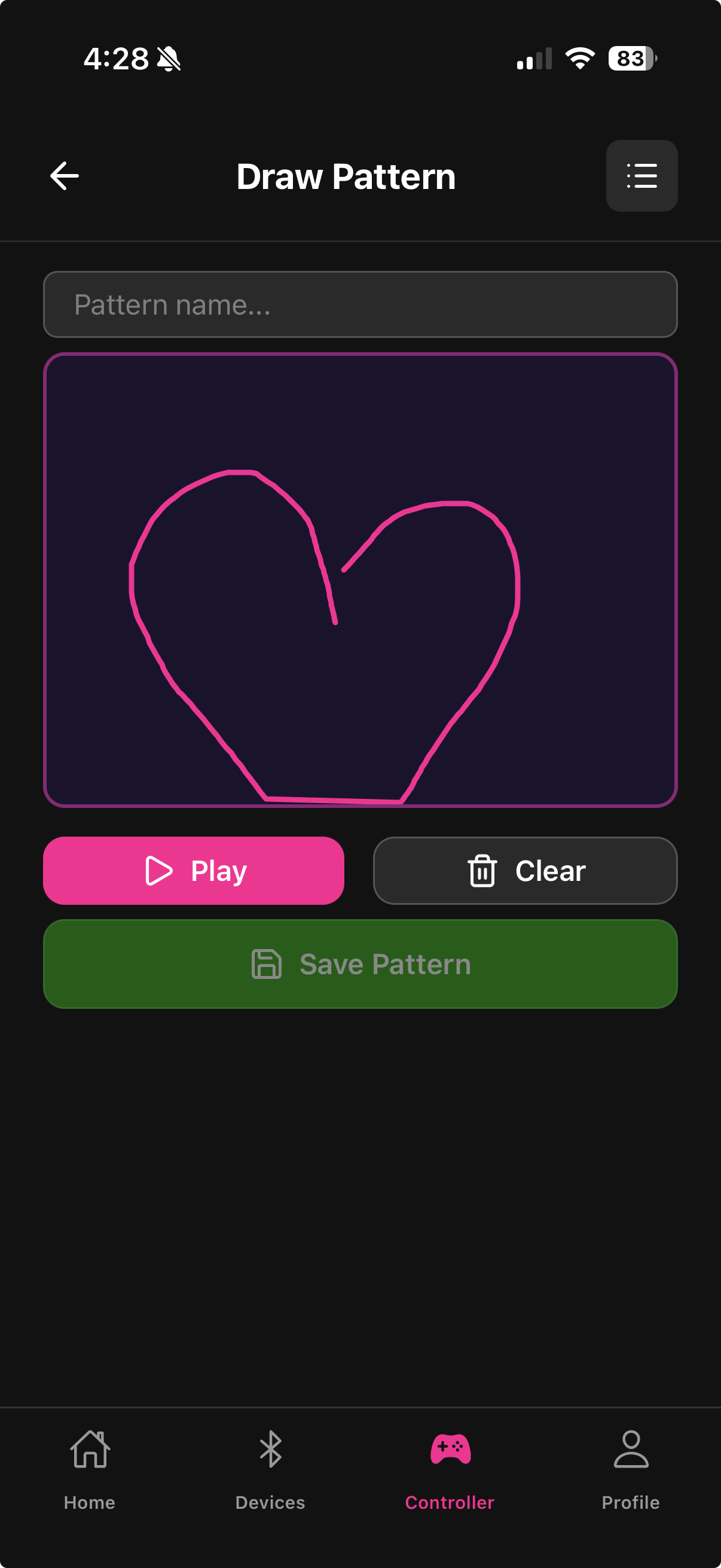
The Draw a Pattern screen lets you create completely custom vibration curves by drawing directly on a canvas. Draw the shape of the vibration over time, save it, and play it back at any time.
How it works
The canvas (350×250 pixels) represents a vibration pattern over time. The horizontal axis is time and the vertical axis is intensity. Draw a line anywhere on the canvas to define how the intensity rises and falls throughout the pattern.
A flat horizontal line near the top = sustained high intensity
A flat line near the bottom = low intensity throughout
Peaks and valleys = pulsing intensity changes
A diagonal ramp = gradual build-up or wind-down
Drawing a pattern
Open the Draw Pattern screen from the Controller tab
Use your finger to draw a vibration curve on the canvas
The line you draw directly becomes the pattern waveform
Tap Preview to run the pattern on your connected device once before saving
Tap Save, enter a name, and confirm
Saving and storage
Logged-in users — patterns are saved to your Fluffer account in Supabase and sync across your devices. Your full pattern library is always available.
Guest users — patterns are saved to local storage on your phone only. If you uninstall the app, all guest patterns are lost. Create an account to back them up.
Using saved patterns
Saved patterns appear in the Pattern Playback screen. You can also find your custom patterns alongside the built-in patterns when choosing what to play.

Draw a gentle S-curve for a smooth wave-like build and release. Draw sharp spikes for a pulsing effect.
Last updated in v1.3.0