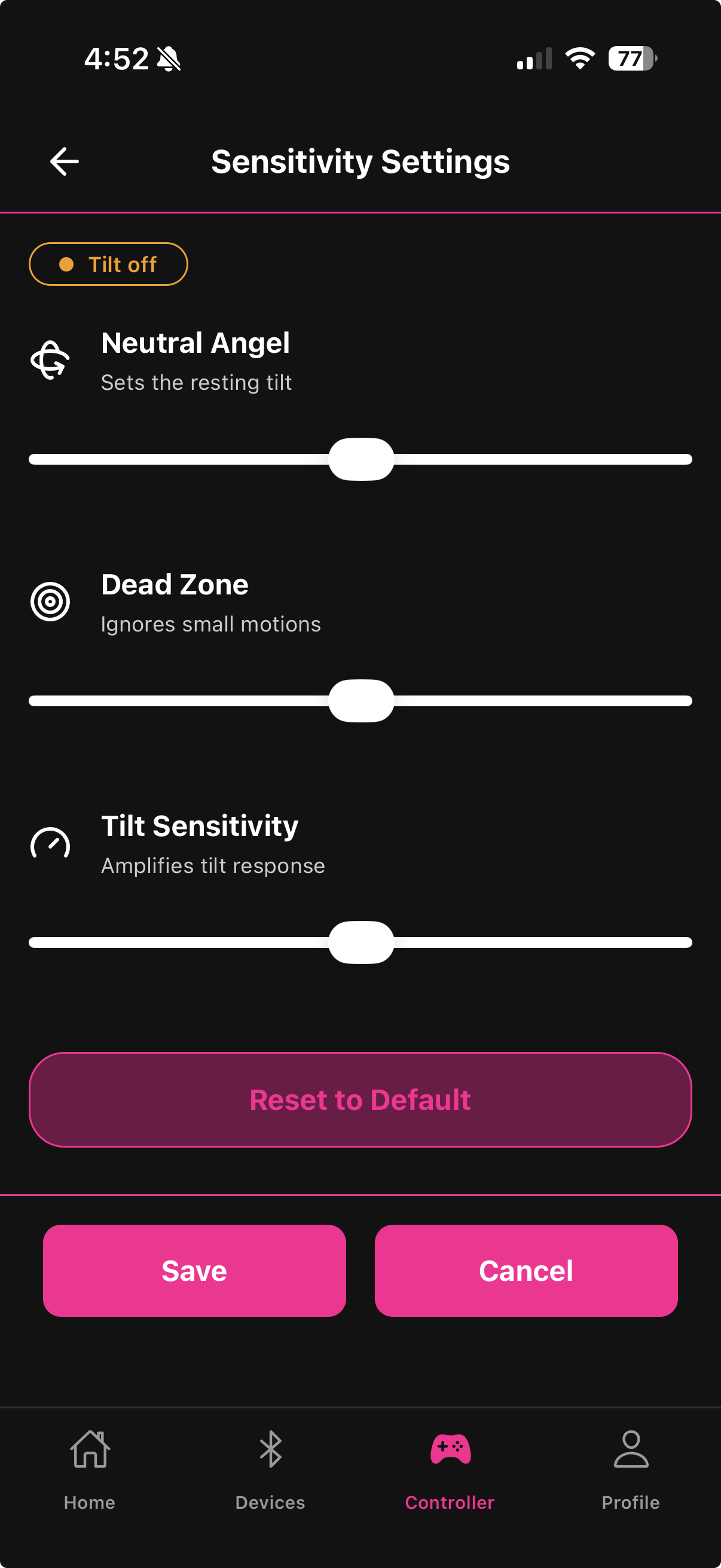
The Sensitivity Settings screen (tap Settings in the Gaming Mode header) gives you fine-grained control over how the Playmate's motion sensor maps to device output. Four parameters let you dial in exactly how responsive and smooth the tilt control feels.
If the Playmate is currently paused or tilt is disabled, a status pill appears at the top of the screen. Tap it to go back to Gaming Mode and resume.
Range: 0–2000 (default: 1000)
Sets the resting tilt position that Fluffer treats as "zero." At the default of 1000, the Playmate should be roughly horizontal for a neutral reading. If you consistently hold the Playmate at a tilted angle during use, adjusting Neutral Angle lets Fluffer recalibrate its baseline to your natural grip position.
Increase if the device runs at low intensity even when you are holding the Playmate at rest in your normal position
Decrease if the device is always near zero even when you tilt intentionally

If adjustments here are not enough to fix a drifting baseline, run the Calibration procedure first — it resets the hardware zero point. Neutral Angle fine-tunes on top of that.
Range: 0–2000 (default: 1000)
The range of motion around the neutral position that produces no output. Anything within the dead zone is ignored; motion beyond it begins producing intensity.
Higher Dead Zone — requires more deliberate movement to trigger output; filters out handling noise and small involuntary shifts
Lower Dead Zone — the device reacts to very small tilts immediately; best for precise, intentional control
The quick Dead Zone slider on the main Gaming Mode screen adjusts this same parameter as a percentage (0–50%) for fast in-session tweaks.
Range: 0–2000 (default: 1000)
Controls how steeply intensity ramps up as you tilt beyond the dead zone. Think of it as the slope of the response curve.
Higher Tilt Sensitivity — a small tilt beyond the dead zone produces a large intensity jump; the device is very reactive but harder to modulate at mid-levels
Lower Tilt Sensitivity — you need to tilt more to reach higher intensities; easier to maintain precise mid-range control
Pair this with the Vibration Sensitivity slider on the main screen. Tilt Sensitivity controls the firmware-level response curve; Vibration Sensitivity scales the final output.
Range: 60ms–600ms (default: 100ms) — labeled Fast, Balanced, Steady, or Slow
Controls the size of the motion window the Playmate uses to calculate intensity — essentially how many recent sensor samples it averages together.
Label | Range | Character |
|---|---|---|
Fast | 60–180ms | Immediate, reactive — follows sharp bursts closely |
Balanced | 180–320ms | Smooth with good responsiveness |
Steady | 320–460ms | Lag-tolerant, less twitchy |
Slow | 460–600ms | Very smooth, significant lag on changes |
Use Fast for game haptics where you want the device to mirror sharp rumble events closely
Use Balanced or Steady if the device feels twitchy or stutters during normal movement
Use Slow if you want ambient, mood-like intensity that drifts gradually rather than reacting to individual spikes
Tap Reset to Default to return all four parameters to their default values (1000 / 1000 / 1000 / 100ms). The button is grayed out when all settings are already at defaults.
Changes apply immediately when you release a slider — the Playmate receives the updated parameters in real time. A brief "Settings saved" confirmation appears. You do not need to stop and restart Gaming Mode to apply changes.

When you tap Start on the Gaming Mode main screen, Fluffer temporarily overrides these parameters with firmware-recommended gaming values. Your settings are restored when you tap Stop.
Last updated in v1.3.0