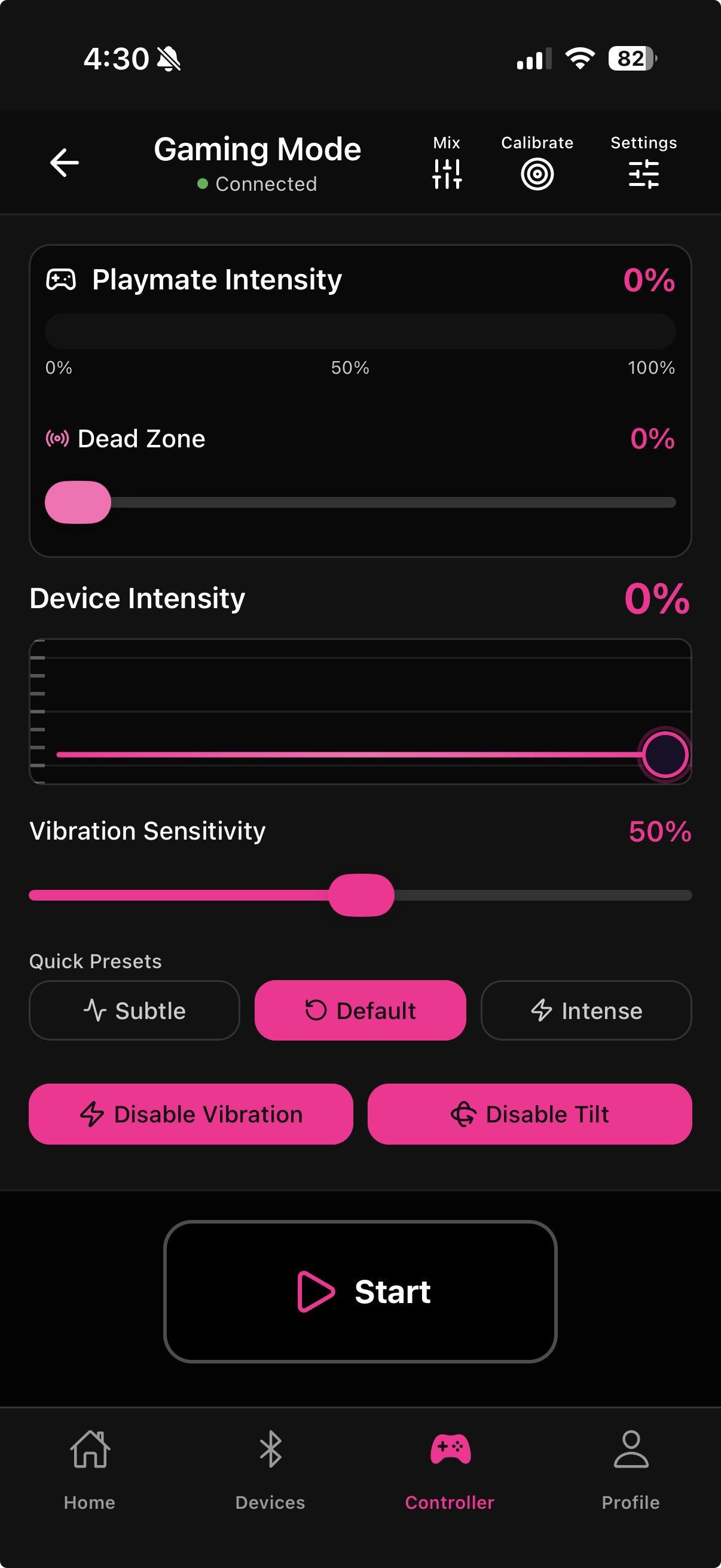
Gaming Mode connects the Playmate accessory's built-in motion sensor to your device in real time. Tilt and vibrate the Playmate — or a game controller plugged into it — and Fluffer translates those signals into motor intensity. No joystick dragging required.
The Playmate accessory connected via the Devices tab
At least one Motorbunny or Fluffer device also connected
(Optional) A USB-C game controller plugged into the Playmate dongle
If no Playmate is connected, Gaming Mode still opens in Demo Mode — you can explore the interface and the phone's own sensors provide simulated feedback, but no device will be driven.
Controller tab → tap Gaming Mode (or the Playmate button depending on your layout).
Three buttons appear in the top-right corner of the Gaming Mode screen:
**Mix** — opens the Control Source Mix screen. Balances how much of your device's output comes from the Playmate motion sensor versus the app's joystick. See Control Source Mix.
**Calibrate** — opens the Calibration screen. Run this once when you first set up your Playmate, or any time the tilt response feels off. See Calibrating the Playmate.
**Settings** — opens the Sensitivity Settings screen. Fine-tune Neutral Angle, Dead Zone, Tilt Sensitivity, and Response Speed. See Sensitivity Settings.
The bar at the top shows the real-time intensity signal coming from the Playmate — how hard it is currently detecting motion or vibration. This reflects what the Playmate is sensing, before it is converted to device output.
The meter changes color as intensity rises:
Pink (0–50%) — normal range
Orange (50–80%) — elevated
Red (80–100%) — near maximum
Use this to calibrate your physical movements before starting a session.
A slider from 0–50%. Sets the minimum motion level below which Fluffer ignores the Playmate signal entirely. Small involuntary movements — breathing, handling the device — produce noise that can cause constant low-level output even when you are still.
Higher Dead Zone — requires a more deliberate movement before any output is sent. Better for noisy environments or if your device responds even when you are at rest.
Lower Dead Zone — the device reacts to very small motions. Better when you want maximum responsiveness to subtle input.
This slider is a quick adjustment for the current session. For precise per-session calibration, use the full Dead Zone parameter in Settings.
The waveform display shows the real-time output being sent to your connected device. It updates continuously — the shape reflects the pattern of intensity over the last few seconds.
A slider from 0–100% (default 50%). Controls how aggressively motion translates to device intensity. At 50%, moderate tilts produce moderate output. At 100%, the same tilt produces twice the output.
Quick presets sit below the slider for fast one-tap adjustments:
Preset | Dead Zone | Sensitivity | Best for |
|---|---|---|---|
Subtle | 20% | 30% | Gentle, ambient response to motion |
Default | 0% | 50% | Balanced starting point |
Intense | 0% | 100% | Maximum reactivity, full range |
Tapping a preset updates both Dead Zone and Sensitivity simultaneously.
Appears when your connected device has a second motor. Controls how much of the primary intensity signal is sent to the secondary motor.
The label changes by device:
Twirl — Motorbunny Original, Buck, MBO rotation motor
Thrust — Motorbunny Jack thrust motor, MBB
Motor 2 — multi-motor Fluffer toys
Range: 0–100% (default 50%). At 0%, the secondary motor does nothing in Gaming Mode. At 100%, it mirrors the primary intensity.
Two buttons that appear when Playmate is connected:
Enable / Disable Vibration — starts or stops all motor output without ending the Gaming Mode session. Use this to pause your device while keeping everything connected and ready.
Enable Tilt / Disable Tilt — turns the Playmate's tilt/motion input on or off. When Tilt is disabled, the Playmate sensor stops driving the device but Gaming Mode stays active. Disabling tilt also sends a stop command to all connected devices immediately.
Tap Start at the bottom of the screen to activate Gaming Mode. The Playmate begins streaming IMU data and your device starts responding to motion.
While active, you will see a green dot and the text "Detecting vibration..." below the Start button confirming the session is live.
Tap Stop to end the session. All connected devices stop immediately. The Playmate's sensitivity settings are restored to whatever they were before Gaming Mode started.
When no Playmate is connected, Gaming Mode opens in Demo Mode (green banner at the top). The interface works normally and the phone's own sensors simulate Playmate input — useful for understanding the controls before your Playmate arrives, but no device output is sent.

Gaming Mode overrides the Playmate's sensitivity parameters when you tap Start (k2=10, k3=56 are set as firmware-recommended values for gaming). These are restored when you tap Stop. Your custom settings in the Sensitivity Settings screen are preserved and reapplied the next time you use Sensitivity Settings directly.
Last updated in v1.3.0