
Controller Skins
The Controller screen has two visual layouts — called skins — that change how the motor controls look and feel. Both skins control the same motors and work with all connected devices. The difference is purely in how you interact with them.
Available skins
Classic (default)
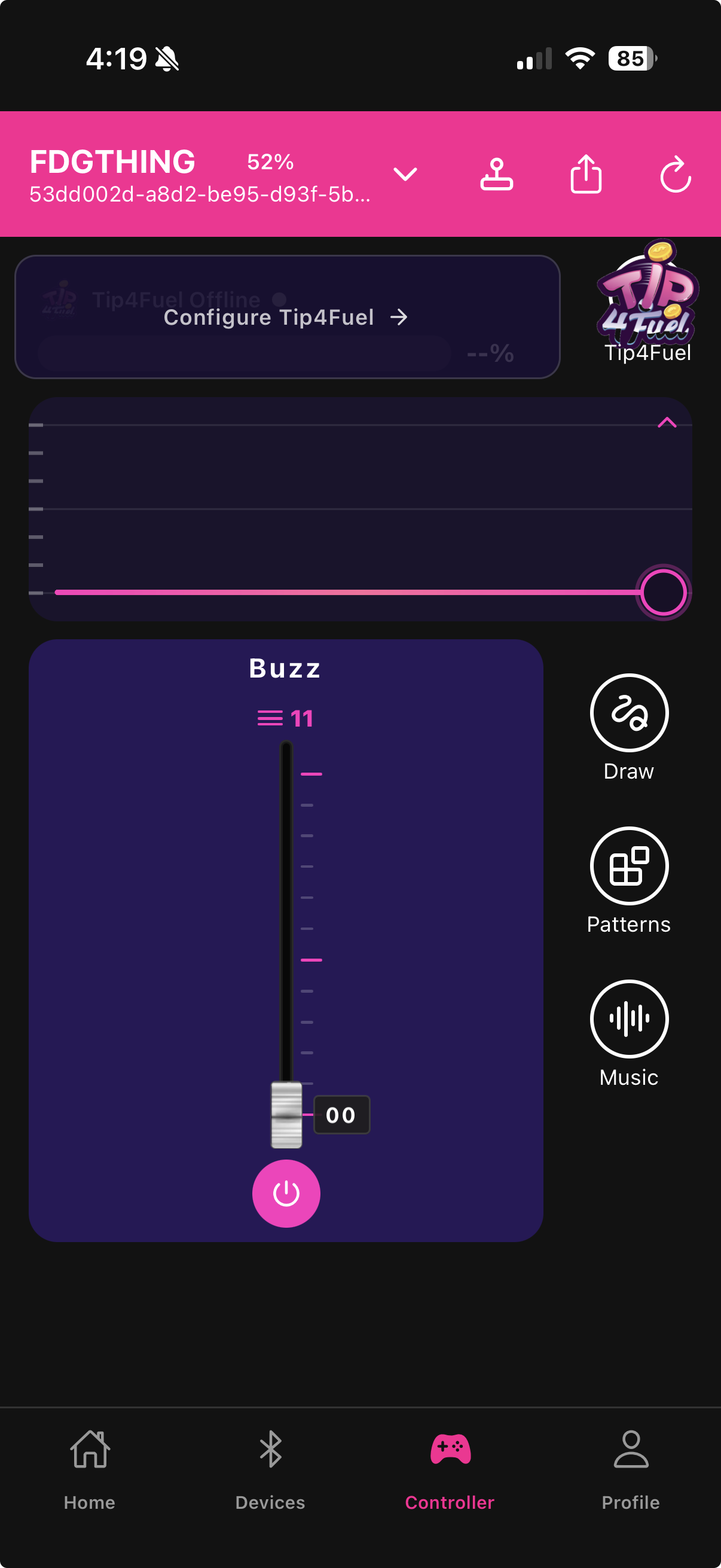
Vertical faders arranged side by side, styled like a mixing console. Each motor has its own fader channel with:
A label at the top ("Buzz" for vibration, "Twirl" for rotation/thrust)
A numbered scale along the track (0–11 for vibration, 0–5 for bidirectional motors)
A physical fader thumb you drag up and down
A numeric value display showing the exact current level
A motor on/off toggle at the bottom of each channel
For bidirectional motors (rotation), the fill extends from the center tick in both directions — up for one direction, down for the other. For standard vibration motors, the fill rises from the bottom.
The Classic skin is familiar if you have used MBLink or any DJ-style interface before.
Modern
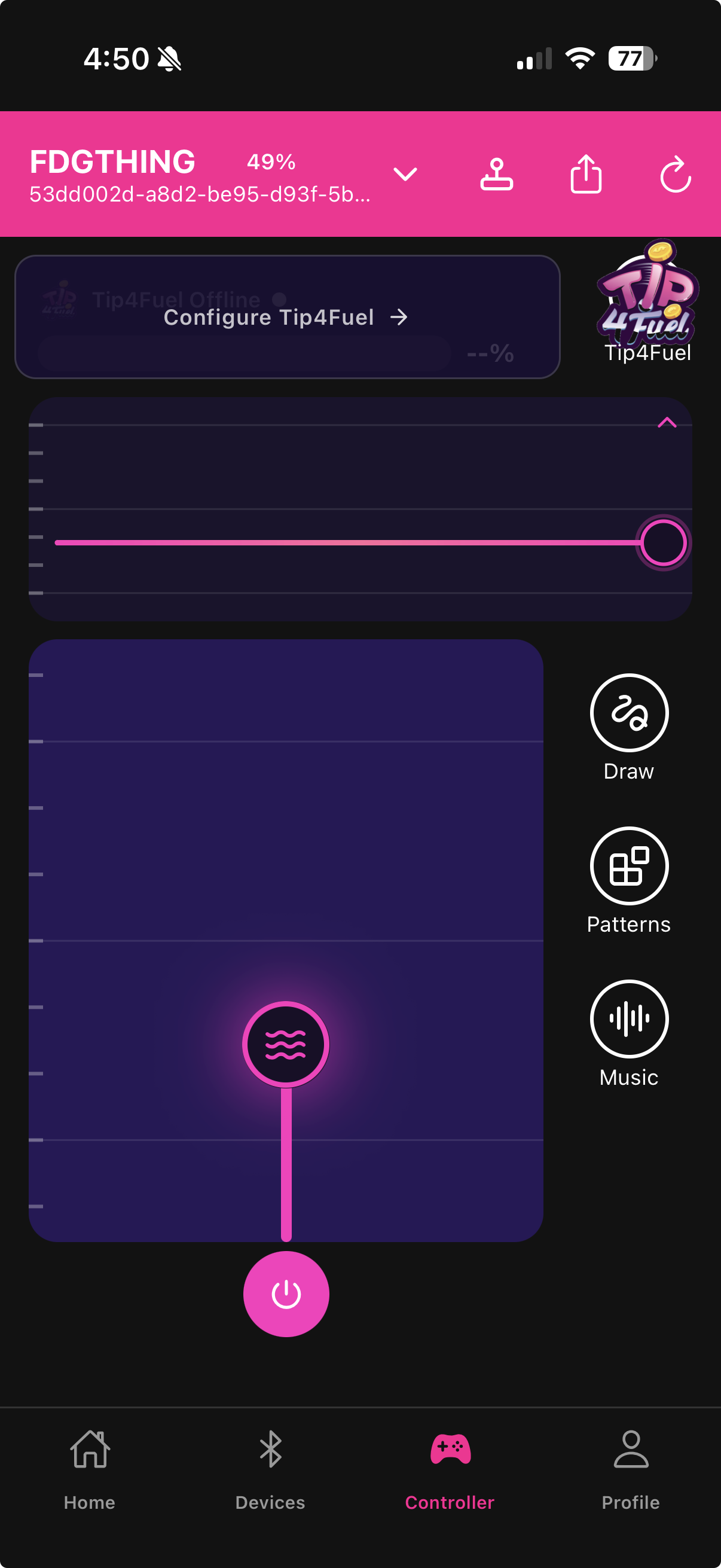
Circular joystick knobs arranged horizontally. Each motor has its own knob with:
An icon in the center indicating motor type (circular arrows for rotation, waves for vibration)
A vertical track — drag the knob up for higher intensity, down for lower
A colored border that intensifies as output increases
A motor on/off toggle below each knob
A grid overlay behind the knobs for visual reference
Both skins support the Burn Mode effect — at very high intensity, the knob border or fader thumb shows an electric glow effect to signal you are near maximum output.
Switching skins
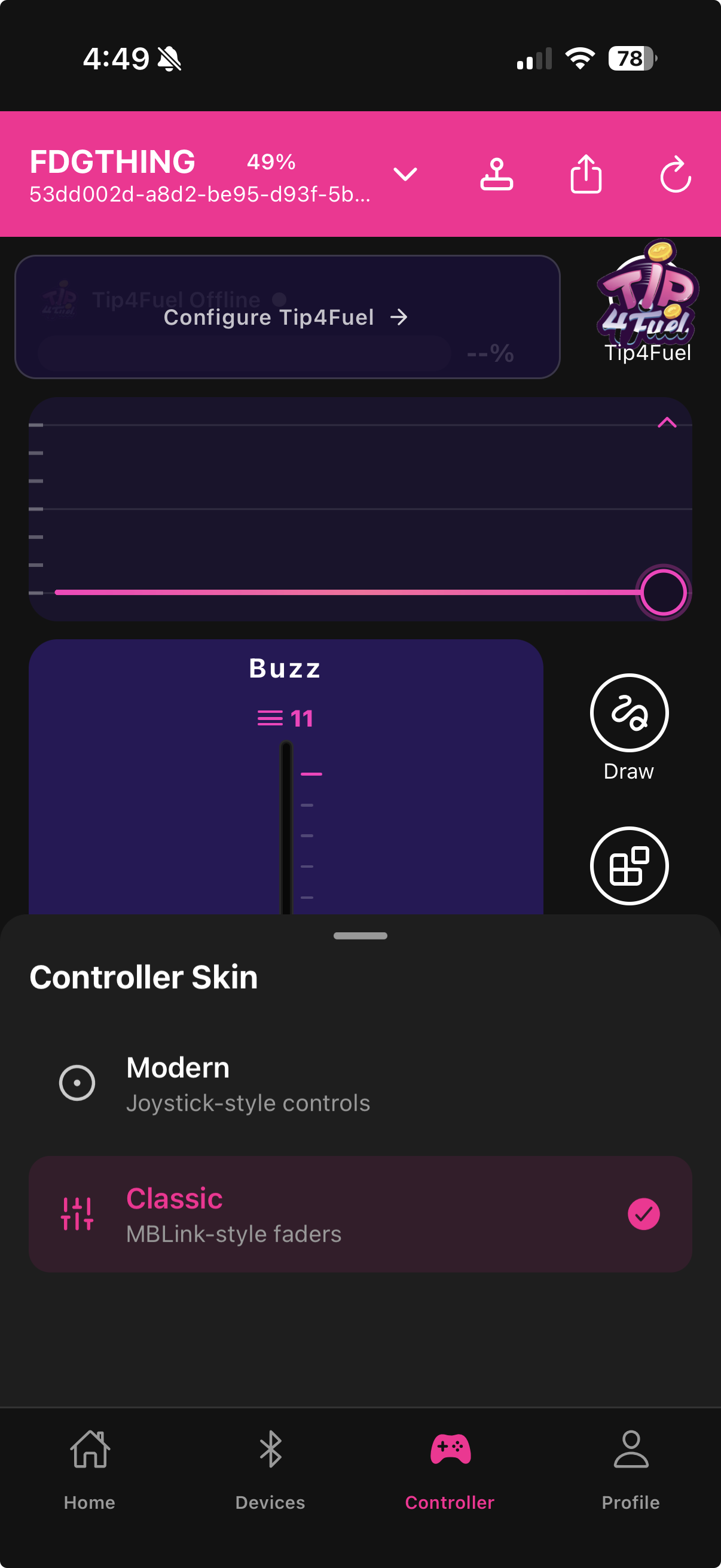
On the Controller screen, tap the skin selector icon in the top-right header (visible as a joystick/layout icon)
A panel slides up from the bottom showing both skins with their names and descriptions
Tap the skin you want — it applies instantly
The panel closes automatically
Your choice is saved and persists across sessions. When switching skins, any current motor intensity carries over seamlessly to the new layout so output is never interrupted.

The skin selector is not available during Remote Sharing sessions or in Demo Mode.
Which skin to use
Classic is better if you want precise numerical feedback and fine control at specific intensity levels — the scale markings and value display make it easy to set an exact level and return to it.
Modern is better if you prefer a more tactile, gestural feel — the circular knobs are large touch targets and the visual is cleaner for streaming overlays.
Last updated in v1.3.0