
Scanning and Connecting
The Devices tab is where you find and connect your Motorbunny or Fluffer devices. All devices connect over Bluetooth.
Before you scan
Make sure Bluetooth is enabled on your phone
Power on your device
Keep the device within approximately 10 meters (30 feet)
On iOS: grant Fluffer Bluetooth permission when prompted
On Android: grant Fluffer location permission (required by Android for Bluetooth scanning)
Starting a scan
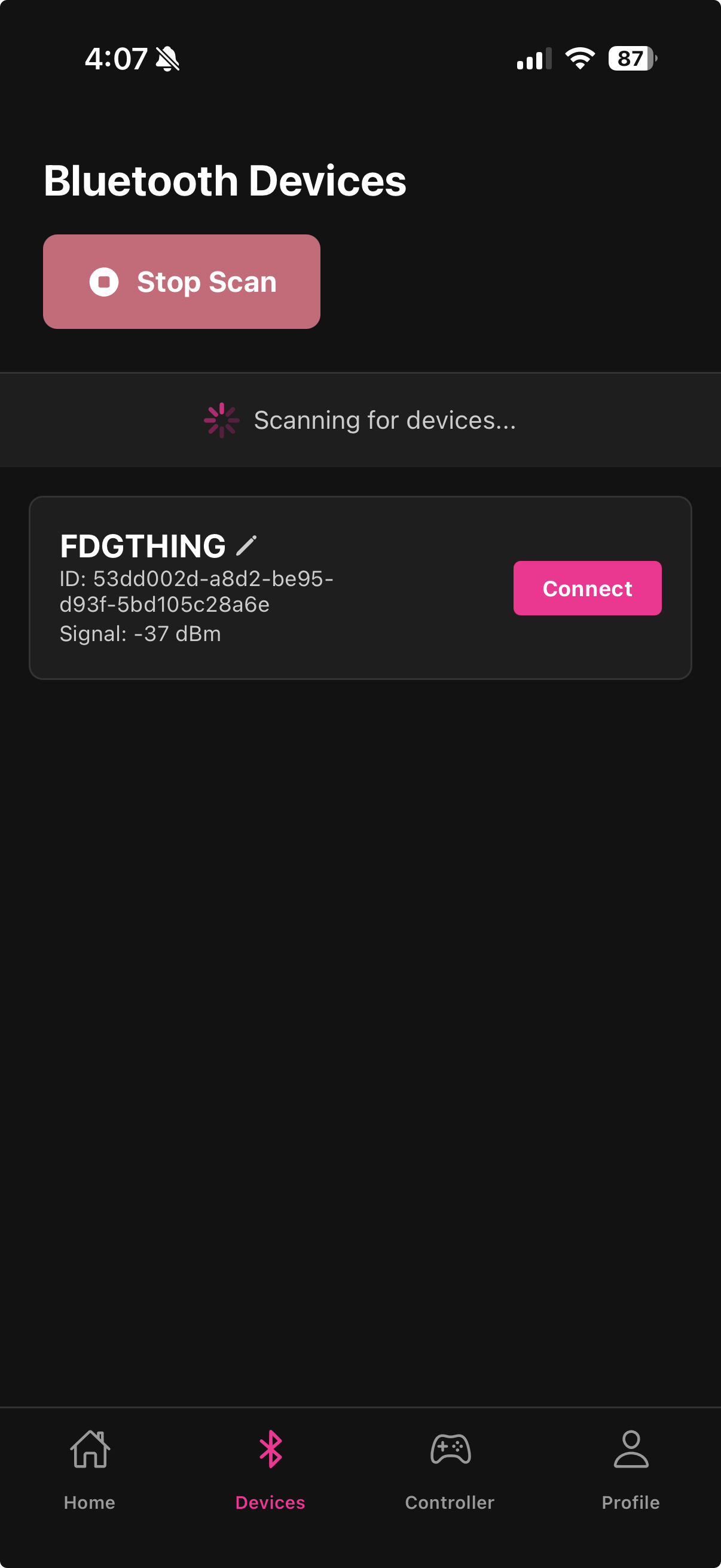
Open the Devices tab
Tap Scan
Your device will appear in the list within a few seconds
Tap your device's name to connect
Status indicators
Each device in the list shows a status indicator:
Searching — Fluffer is scanning and the device has not been found yet.
Found — the device is nearby and visible in the scan. Tap to initiate connection.
Connecting — connection in progress.
Connected — the device is ready to receive signals from the Controller tab.
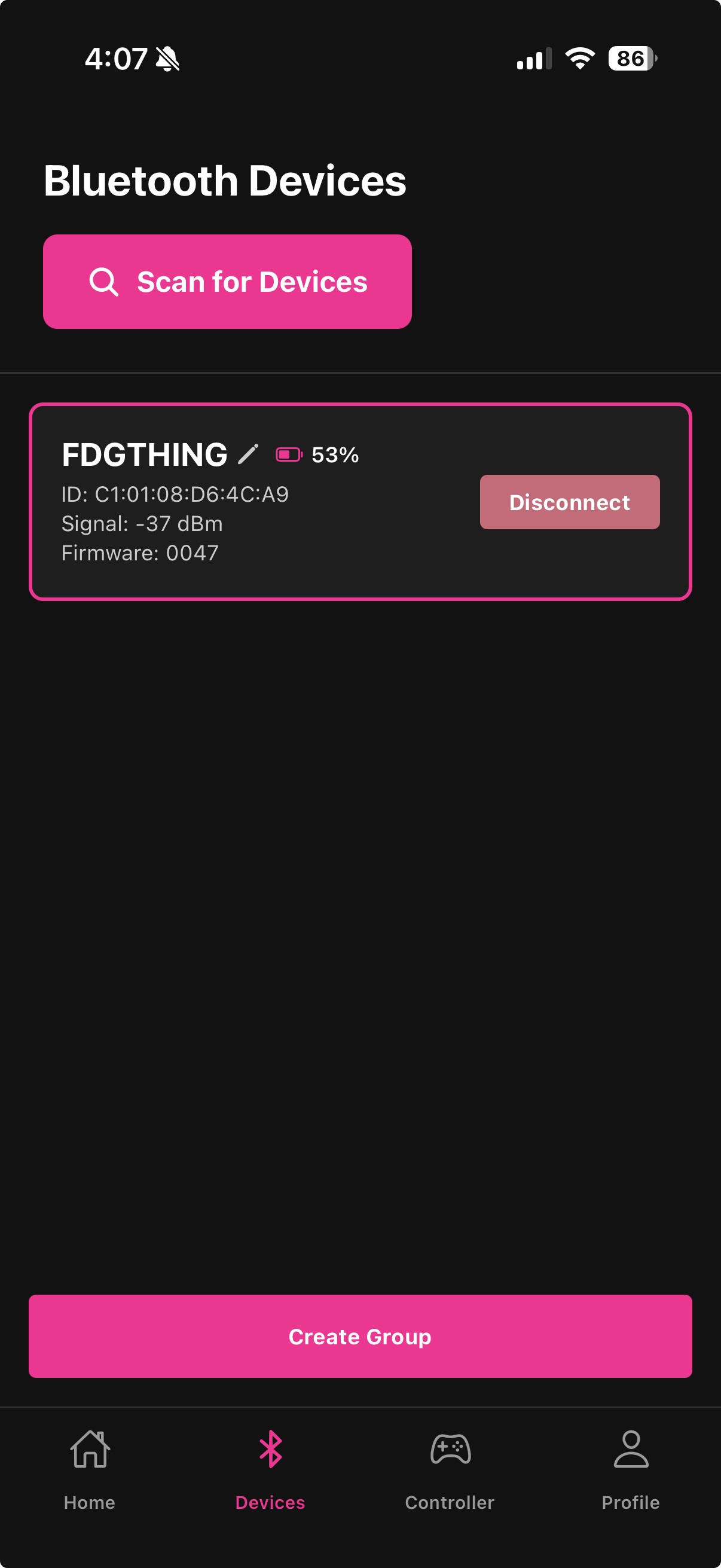
Disconnected — the device was connected earlier in this session but the connection dropped.
Help modal
If your device does not appear within about 30 seconds, a help modal automatically opens. It walks you through common troubleshooting steps: checking device power, Bluetooth settings, and distance.

Only one Fluffer session can control a device at a time. If another phone has the device connected, disconnect it there first before scanning here.
Last updated in v1.3.0