
Playing Games
The Home tab in Fluffer is your game library. Games connect your device to interactive experiences — the game sends intensity signals to Fluffer, which drives your device in real time.
Browsing games
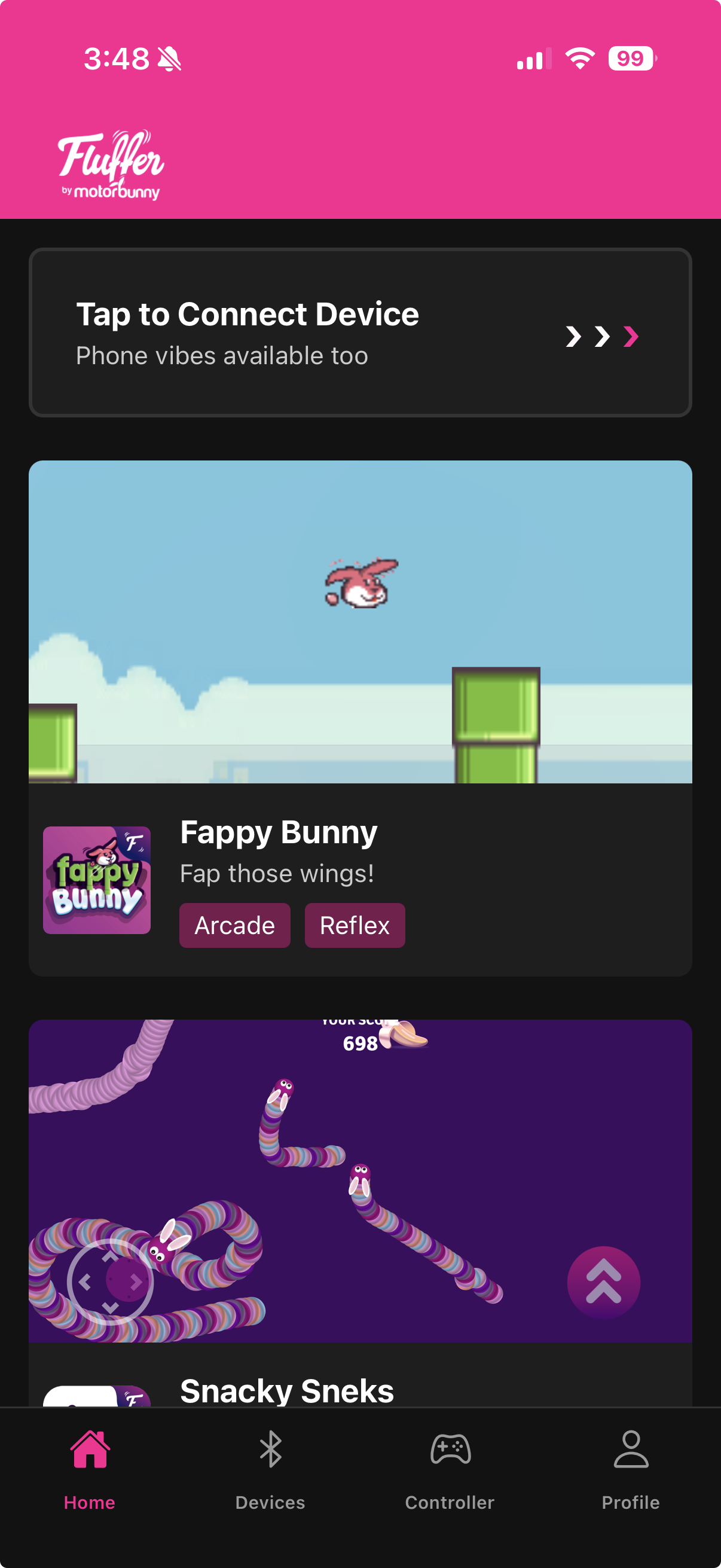
Open the Home tab to see the full game library. Each game is displayed as a card with a title, cover image, and tags indicating the game genre (Platformer, Racing, Shooter, Arcade, Rhythm, and more).
Tap any game card to open the game detail page. The detail page shows:
Full title and cover art
Genre tags
Description of what to expect
Compatibility notes (if the game requires Playmate hardware)
Launching a game
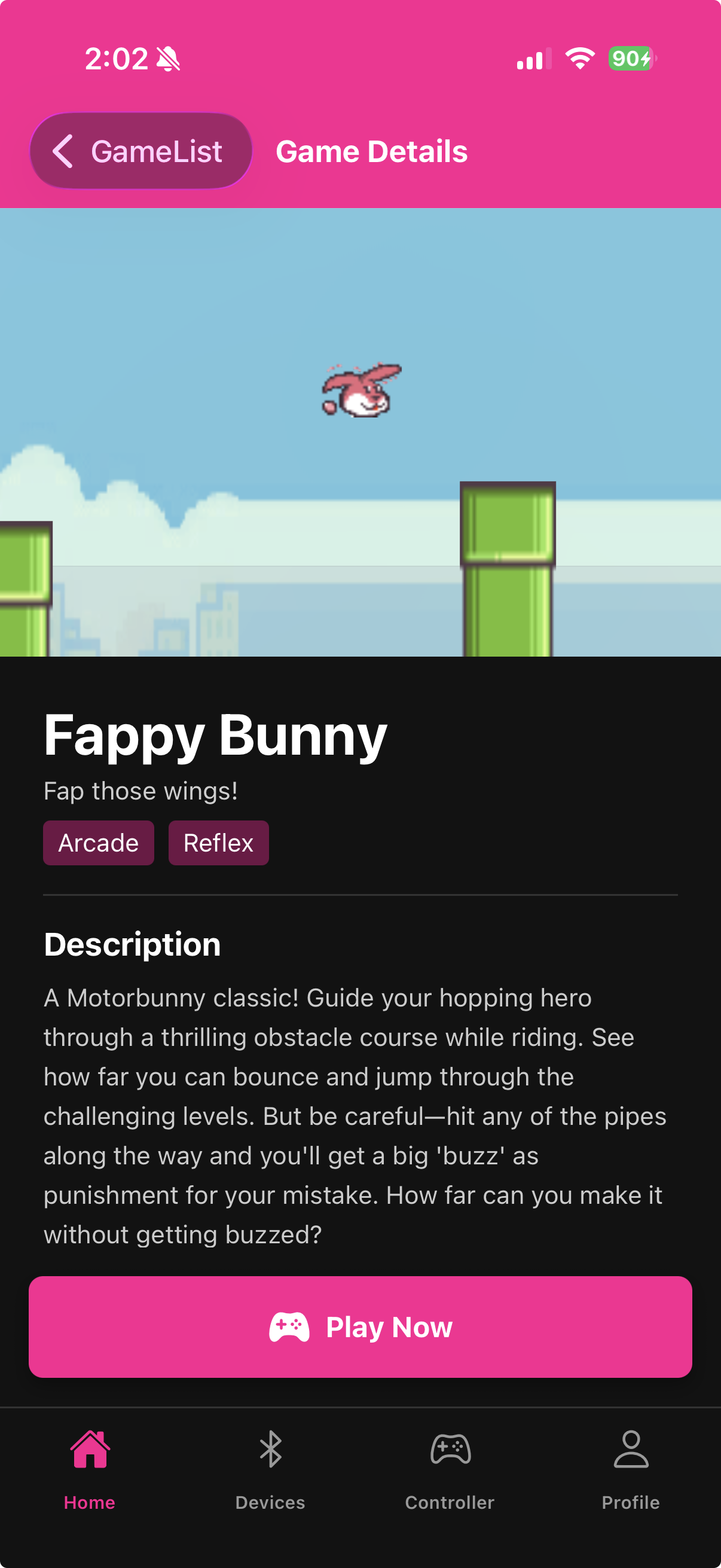
Tap Play on the game detail page. The game loads in a WebView and starts immediately.
Make sure a device is connected before launching — the game will still load without a device connected but you will not feel any output.
How your device responds
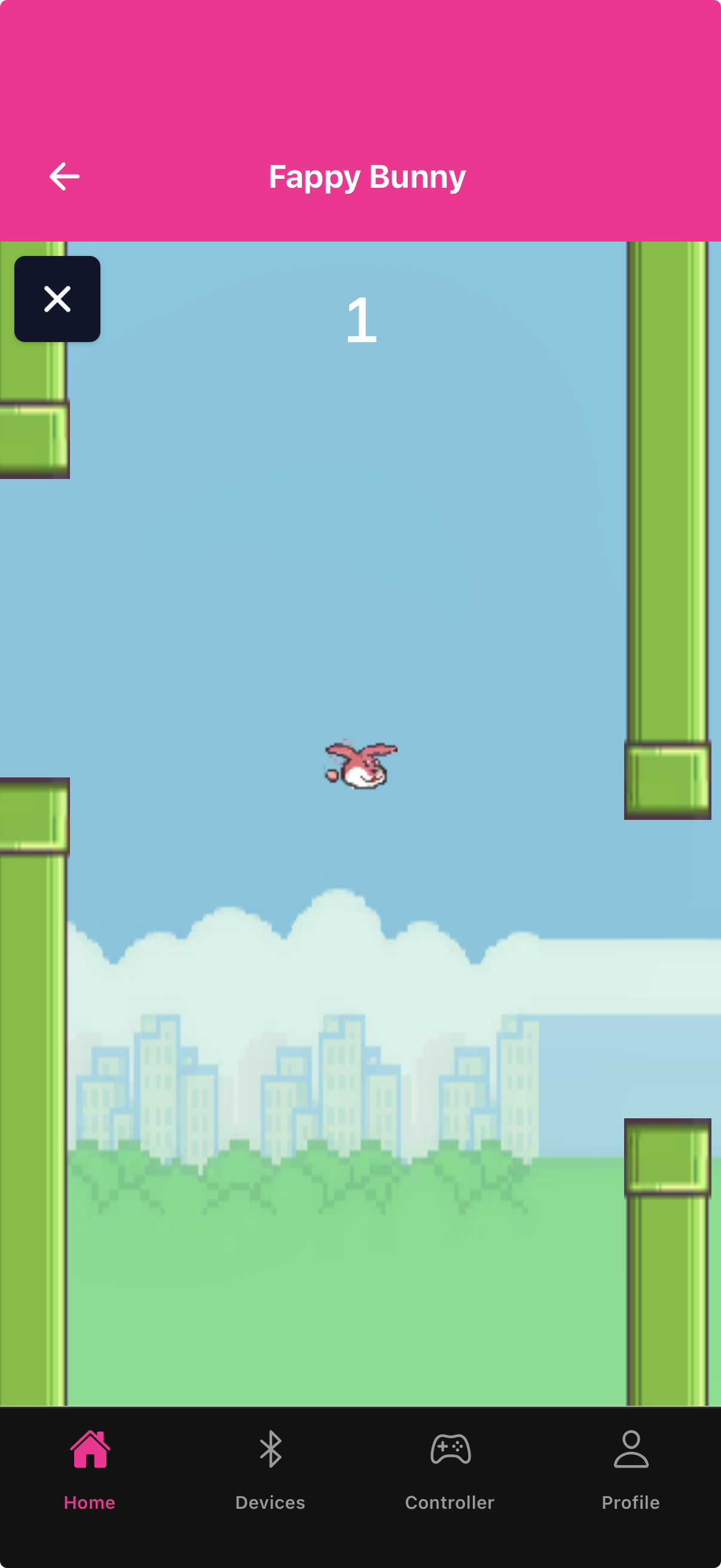
Games send vibration and intensity signals to Fluffer continuously during gameplay. What you feel depends on the game:
Action games spike intensity during combat, explosions, or impacts
Racing games ramp intensity with speed and throttle
Rhythm games sync intensity to music beats
Puzzle and trivia games may use lower-level ambient intensity with spikes on correct or incorrect answers
Stopping a game
Tap the back button or navigate away to exit the game. The device stops automatically when you leave the game screen.

Connect your device before opening the Home tab so it's ready when you tap Play. If you connect after launching, navigate back and relaunch the game.
Last updated in v1.3.0