
Managing Your Profile
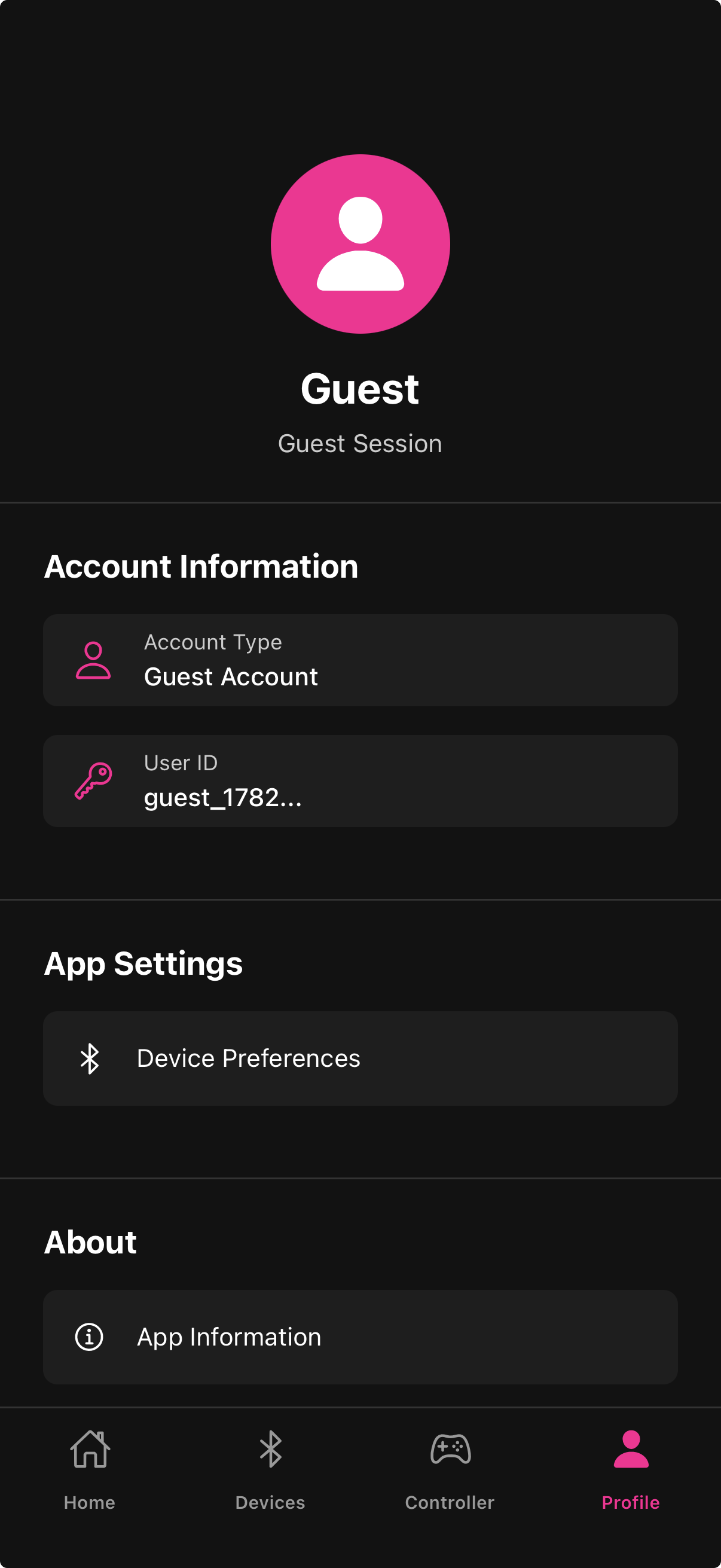
The Profile tab is where you manage your Fluffer account details and app preferences.
Viewing your profile
Open the Profile tab to see your current name, email address, and account type (email/password, Apple, or Google).
Editing your name
Tap Edit Profile on the Profile screen
Tap the name field and type your updated name
Tap Save
Editing your email
Tap Edit Profile
Tap the email field and enter your new email address
Confirm with your current password
Tap Save — a verification email is sent to the new address
You must verify the new email address before the change takes effect.

If you signed up with Apple or Google, your email is managed by Apple or Google. You can change your display name in Fluffer, but the sign-in email is controlled by your Apple ID or Google account.
Account type
Your sign-in method is shown on the Profile screen. Email/password accounts can update passwords directly in the app. Apple and Google accounts do not have a Fluffer password — see Changing Your Password for details.
Guest mode
If you are using Fluffer without an account, the Profile tab shows a prompt to create an account or sign in. You do not have a profile to edit in guest mode.
Last updated in v1.3.0