
Adding Widgets to OBS
This guide walks you through starting the Fluffer overlay server and adding your first widget to OBS.
Step 1: Start the overlay server
Open Fluffer and go to the Tip4Fuel section
Tap OBS Overlay
Tap Start Server — Fluffer launches a local HTTP server on port 4747
The screen shows your widget URLs, each including your session token
Keep the Fluffer app open and the screen active while streaming. The server runs in the background but requires the app to stay running.
Step 2: Copy a widget URL
Each widget has its own URL shown on the OBS Overlay screen. The URLs look like:
http://192.168.x.x:4747/overlay/fuelgauge?k=yourtokenThe ?k= part is your session token — it is required for security. Never share the token publicly; anyone with the URL and token can read your overlay data.
Tap the copy button next to any widget URL to copy it.
Step 3: Add as a Browser Source in OBS
In OBS, click the + button in the Sources panel
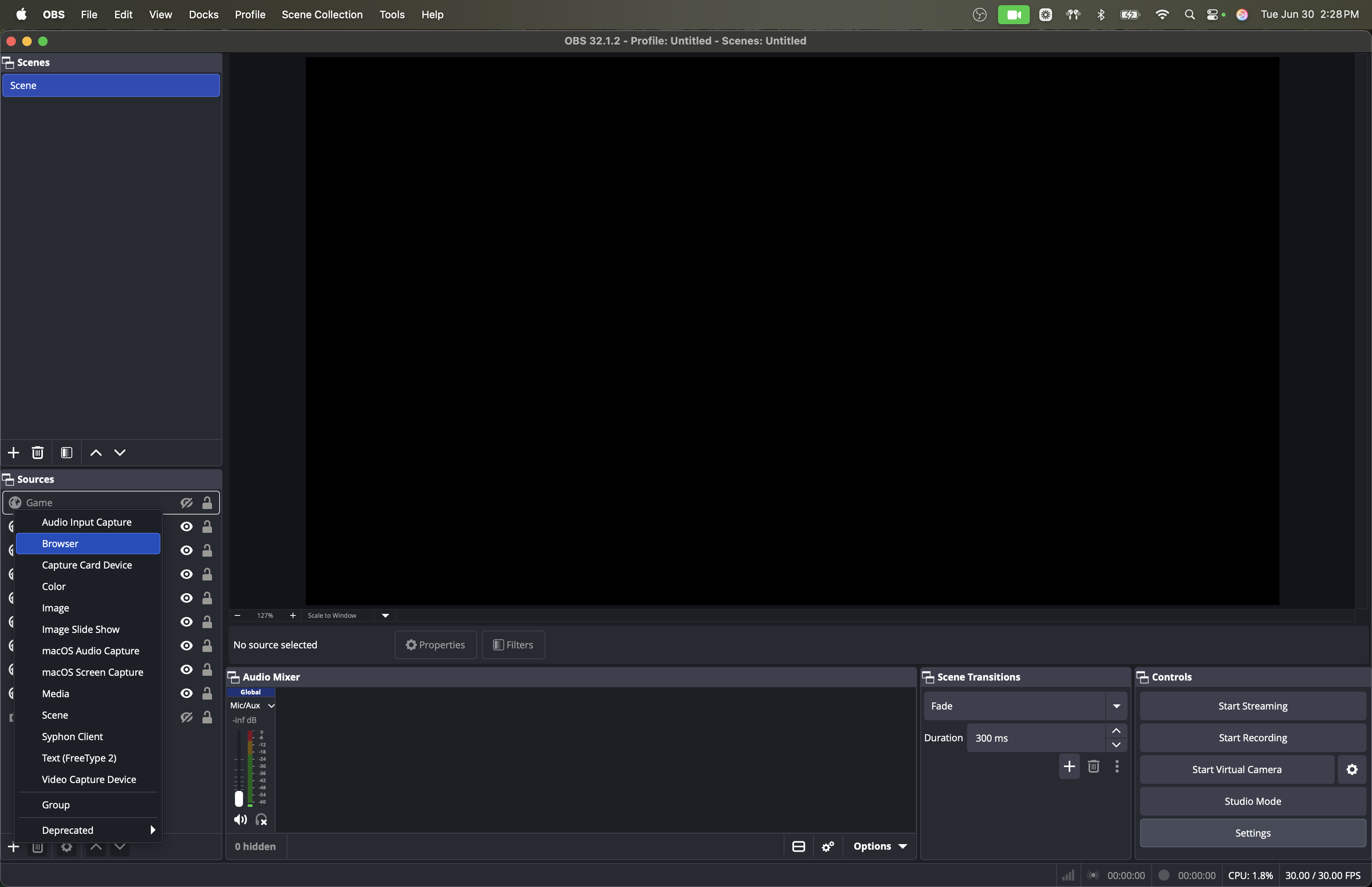
Select Browser Source
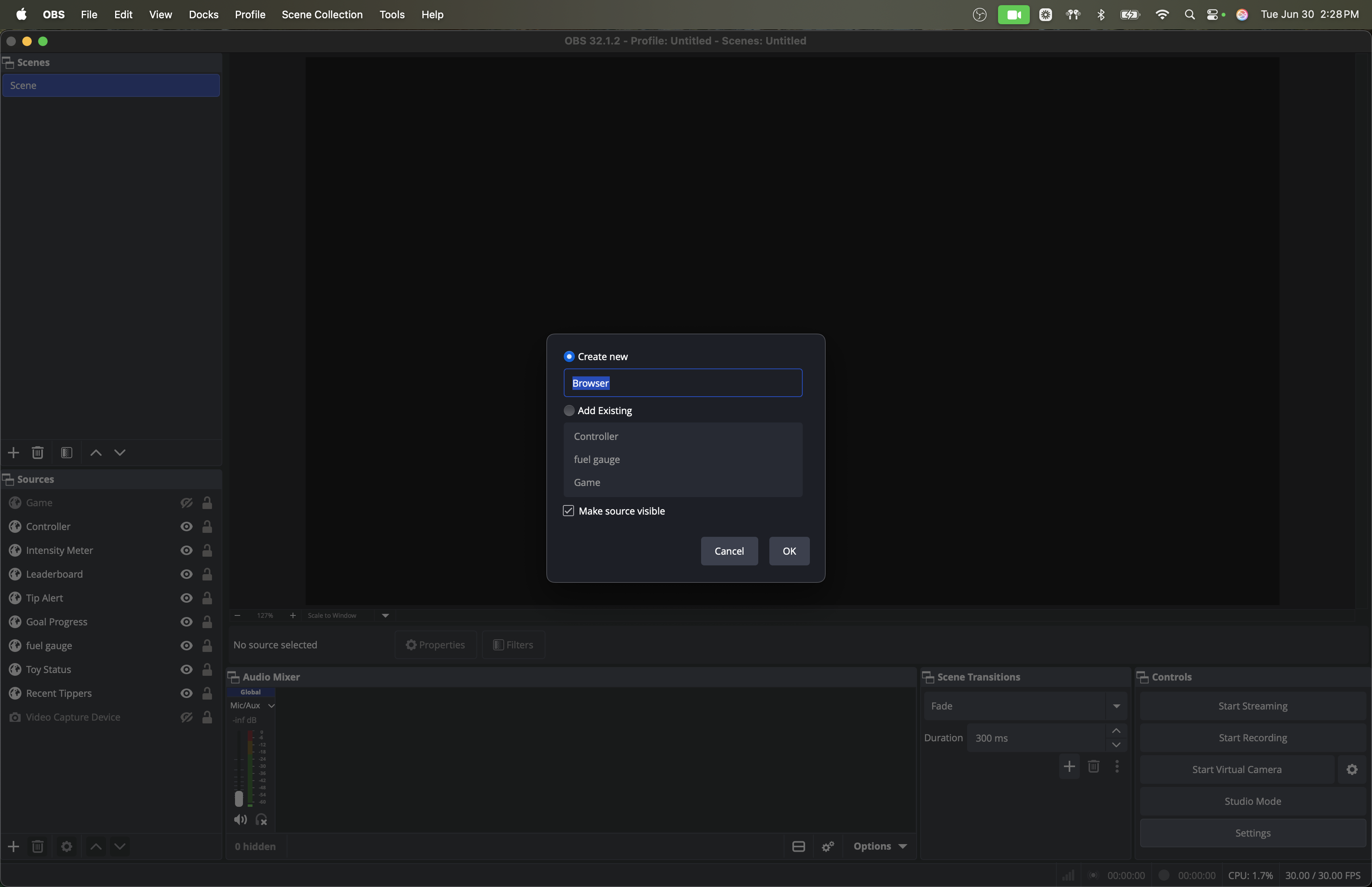
Give the source a name in the dialog that appears
Paste the widget URL into the URL field
Set the width and height to the recommended size for that widget (see individual widget articles for sizes)
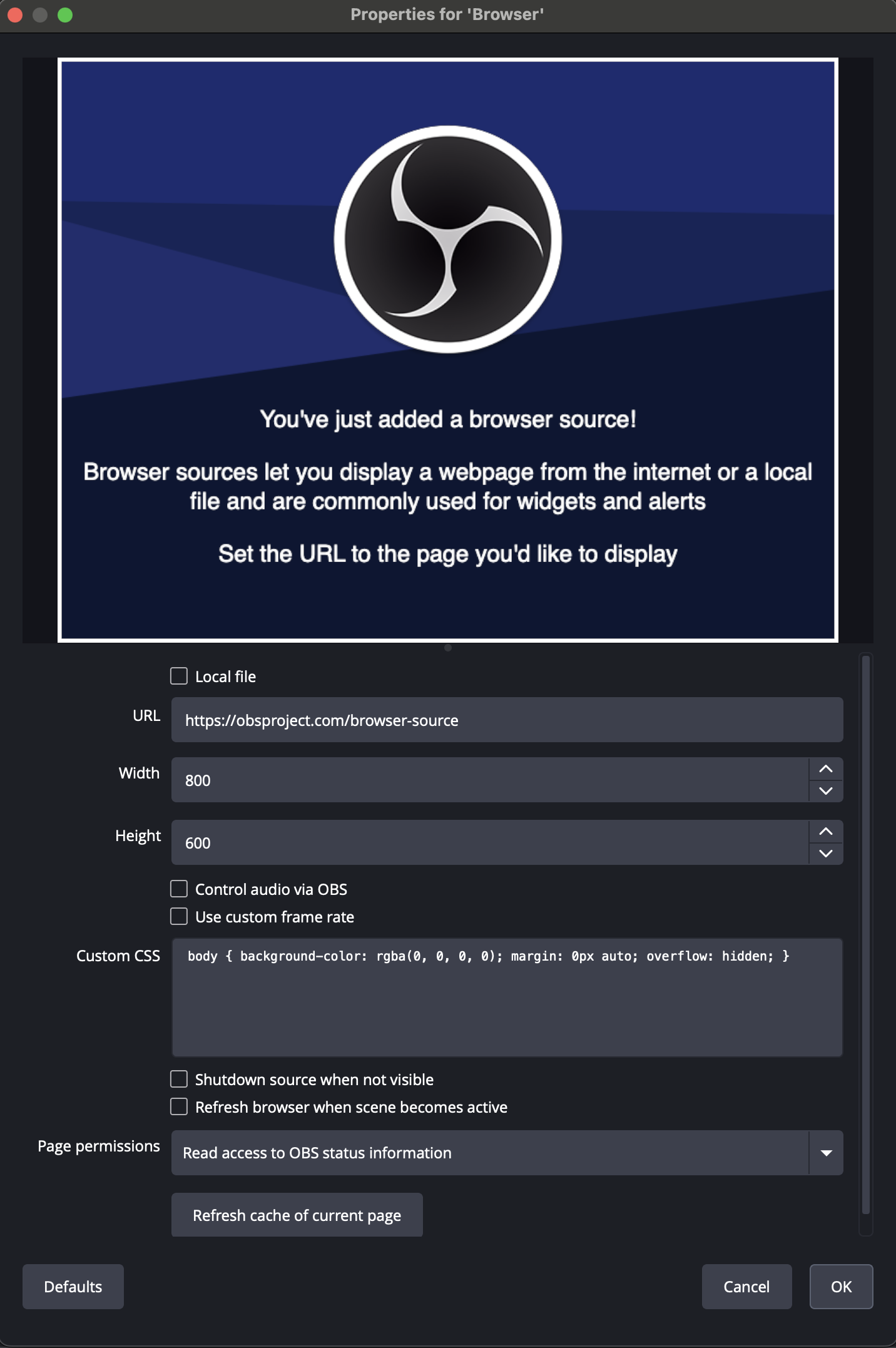
Click OK
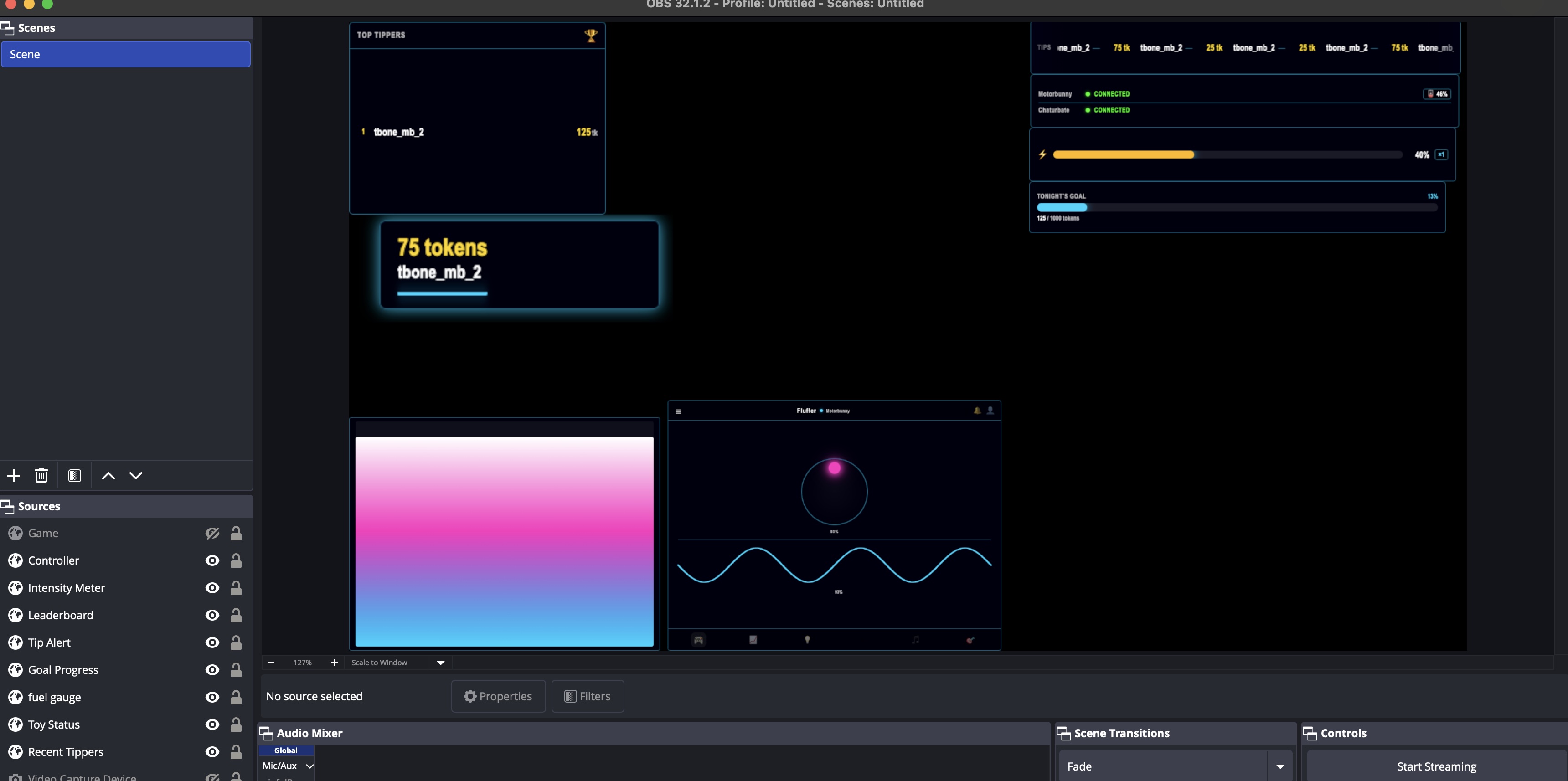
Position the source in your scene
The widget loads immediately and begins updating live.
Recommended widget sizes
Widget | Width | Height |
|---|---|---|
Fuel Gauge | 400px | 80px |
Tip Alert | 400px | 120px |
Recent Tippers | 600px | 60px |
Intensity Meter (horizontal) | 300px | 60px |
Intensity Meter (vertical) | 120px | 300px |
Controller | 400px | 700px |

If a widget shows a blank page, confirm the server is still running in Fluffer and that your PC and phone are on the same Wi-Fi network. Refresh the Browser Source in OBS to reconnect.
Last updated in v1.3.0