
Running a Session
Once you have set up your Chaturbate connection and configured your fuel settings, starting a Tip4Fuel session takes one tap.
Before you go live
Make sure your device is connected in the Devices tab
Open Tip4Fuel and confirm your Chaturbate connection is active (green indicator)
Review your conversion table and fuel mode settings
Set up your OBS overlay if you want viewers to see the fuel gauge (optional but recommended)
Starting a session
Tap Start Session on the Tip4Fuel screen. Fluffer begins listening to the Chaturbate Events API. The fuel gauge activates and your device will respond as soon as the first tip arrives.
You do not need to stay on the Tip4Fuel screen — you can navigate elsewhere in the app while the session continues in the background.
During a session
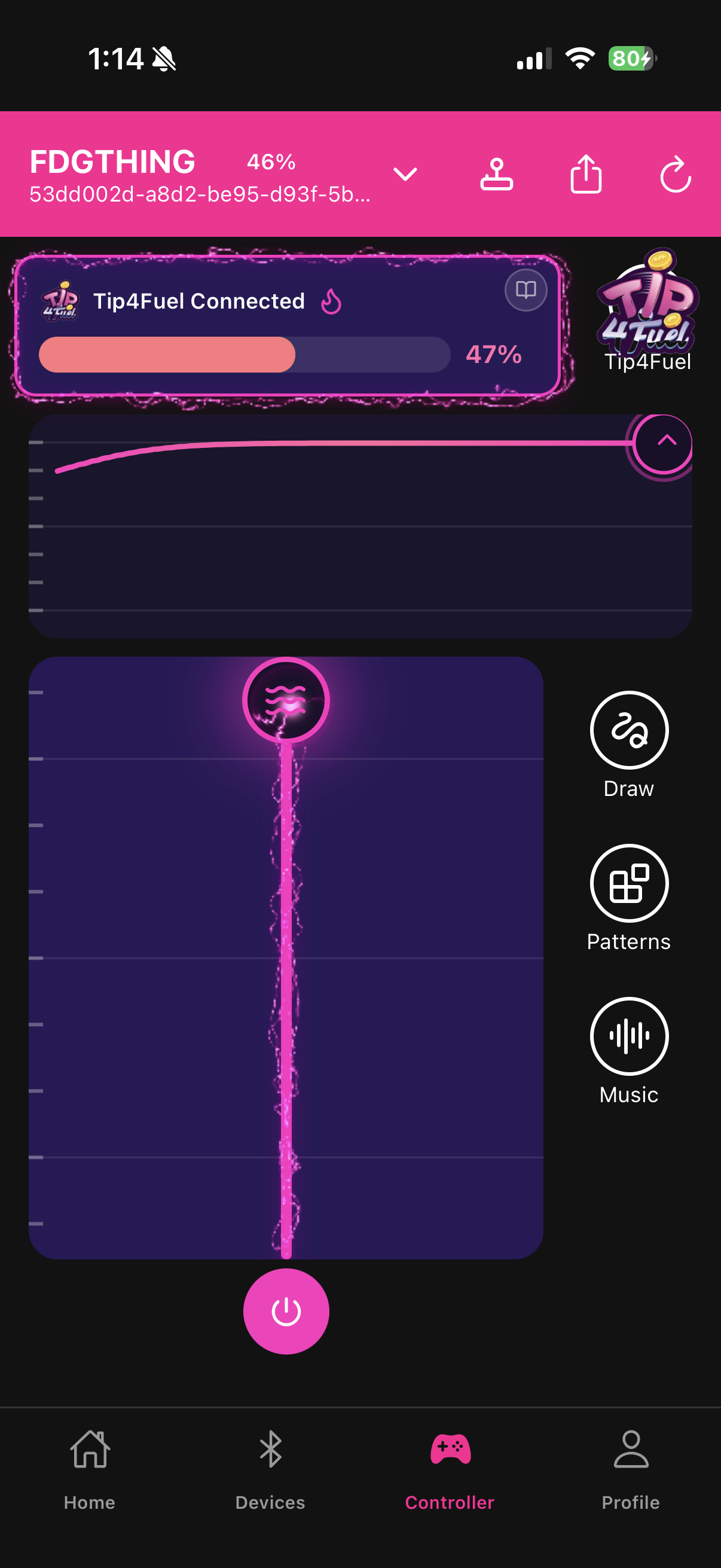
The fuel gauge on the Controller screen shows the current tank level in real time
Each incoming tip creates an immediate intensity spike and adds fuel
The tank burns down between tips at your configured burn rate
The device stops automatically when the tank empties
Ending a session
Tap End Session to stop the Tip4Fuel session. The device stops immediately. The session is logged to your analytics history.
You can also end a session by disconnecting from Chaturbate or by closing the app.

If the Chaturbate Events API connection drops during a session (network issue, token expired), the app will attempt to reconnect automatically. If reconnection fails, you will see a connection error indicator. End the session and reconnect to restart.
Last updated in v1.3.0